Figma Code Connect + MCP Server: How AI Finally Closes the Design-to-Code Gap
Every developer who has ever built from a Figma file knows the gap. The design looks perfect on the canvas, you build it, and somehow the spacing is off, the wrong button variant sneaks in, and the colors are almost right but not quite. Then comes the back-and-forth with the designer.
I'm Shahriar Shuvo, a website developer in Bangladesh, and design-to-code handoff is one of the parts of my job I've watched change the most over the past year. Figma's MCP server and Code Connect have genuinely shifted how I move from a design to a working interface. So let me explain what these two things are, how they work together, and why they matter — without the marketing fluff.
The Old Way: AI Building From Screenshots
Until recently, the only way to hand a design to an AI coding tool was crude. You'd feed an image of a design, or an API response, into a chatbot and hope for the best. (Rosemont Media, LLC) The AI would essentially guess at your intent from pixels.
This produces code that works but rarely fits. If you ask a tool to write code with no context beyond its training data, the output is usually usable but won't match the patterns in the rest of your codebase. (Rosemont Media, LLC) Every team structures things differently — different frameworks, naming conventions, spacing systems — and those accumulated decisions form a fingerprint that's nearly impossible for an AI to infer from a screenshot alone.
So you'd get generic code, then spend your time refactoring it to match your project. The handoff wasn't really automated; it was just relocated.
What the Figma MCP Server Actually Does
This is where the Model Context Protocol comes in. MCP is an open standard — created by Anthropic — that lets AI agents talk to external tools through a consistent interface instead of staring at images.
Figma built an MCP server on top of this standard. Here's the key shift: instead of interpreting a picture, the AI reads the structure of your design. The Figma MCP server exposes the structured contents of your file — hierarchy, layout rules, text styles, component properties, and image references — so an AI agent can request live design data from your selected layer instead of interpreting screenshots or exported assets. (WP Engine®)
That difference is everything. Because this information reflects how your design is actually constructed, it forms a far more reliable foundation for generating code. (WP Engine®) The AI isn't guessing that a gap "looks like about 16px" — it's reading the actual layout constraint.
In practice, you run the server, connect an MCP-capable tool, and go. It works with agentic coding tools like Copilot in VS Code, Cursor, Windsurf, and Claude Code. (Rosemont Media, LLC) You select a frame in Figma, ask your AI tool to build it, and it pulls the real design context — node tree, variants, design tokens — straight from the file.
One practical caveat worth knowing upfront: Figma's official server requires a paid plan that includes Dev Mode, and you enable it from preferences in any design file. (WP Engine®)
Where Code Connect Takes It Further
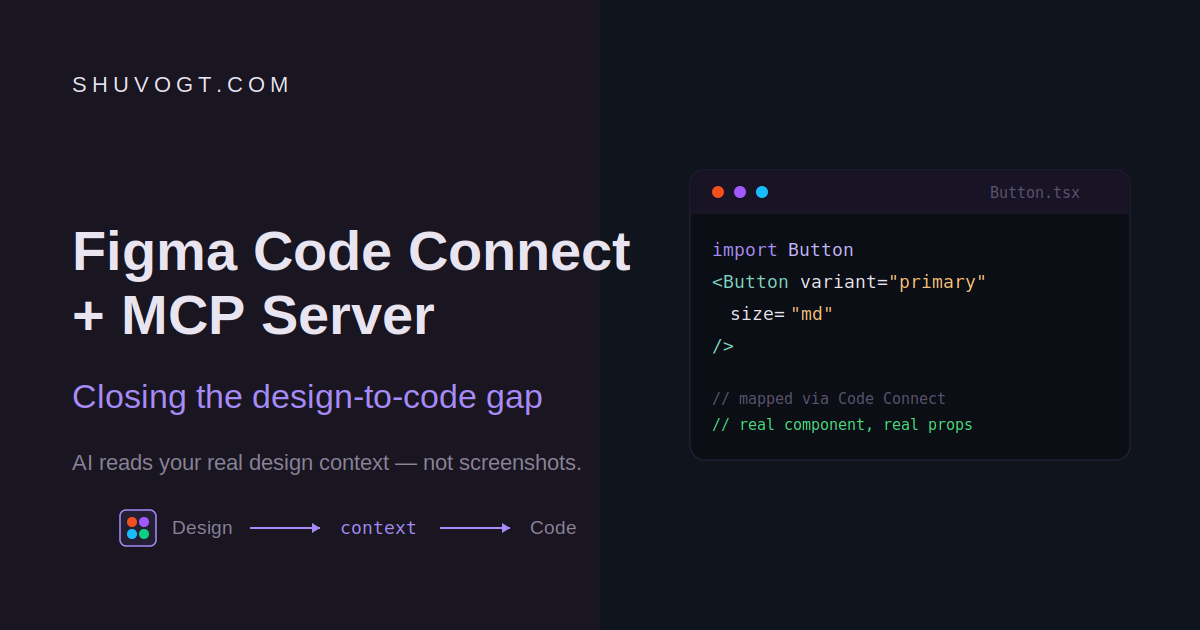
The MCP server alone is a big step up. But on its own, it still generates components from scratch based on styling context. It knows what your design looks like — it doesn't yet know that you already have a <Button> component in your repo that does exactly this.
That's the problem Code Connect solves. Code Connect is a bridge between your codebase and Figma's Dev Mode, connecting components in your repositories directly to components in your design files. (techradar)
When you've mapped your design system this way, the AI stops reinventing and starts reusing. When Code Connect is set up for your design system components, the Figma MCP server enhances its output by including real implementation details from your codebase, helping AI agents generate code that's consistent with your actual component library and design patterns. (Codeable)
So instead of a freshly-invented button that merely resembles yours, the AI references the actual component — correct props, correct import path, correct variants. If elements are mapped to code via Code Connect, the agent can pull from real code resources; if not, the server still provides styling context to help it write design-informed code from scratch. (WordPress) Either way you win, but mapped components are where the magic really lands.
Two Ways to Set Up Code Connect
There isn't a single rigid path here, which I appreciate. There are two ways to connect your repositories to Figma — the Code Connect UI and the Code Connect CLI — and both feed into the same MCP infrastructure, differing only in how they fit your workflow. (techradar)
The UI route is the gentle on-ramp. The Code Connect UI runs entirely inside Figma, is quick to set up, language-agnostic, and ideal for teams who want a simple, visual way to link design components to code. (techradar) It connects directly to GitHub for repository access.
For larger or multi-platform teams, the mapping gets more powerful. Code Connect UI supports one-to-many connections, letting you map a single design component to multiple code implementations across frameworks and languages like React, SwiftUI, Jetpack Compose, and Vue. (WPSandbox) One Figma button, mapped to your React and your SwiftUI implementations simultaneously — that's a real time-saver for cross-platform shops.
By default the generated output leans toward a common stack. The MCP server's default output is React plus Tailwind, but you can customize it through your prompt. (White Label Coders) So if your project uses something else, you just tell the agent.
Why This Matters for Your Projects
It's tempting to file all this under "nice AI demo," but the practical impact on a real client project is concrete.
First, it collapses the translation step. For the first time, building what designers imagine is no longer a translation task — it becomes a handoff that actually lands. (Irongatecreative) Fewer rounds of "that's not quite the spacing," fewer manual token lookups, less time copying hex values out of the inspector.
Second — and this is the part I find most interesting — it rewards good design systems. Paired with MCP servers, design systems become a productivity coefficient for AI workflows, ensuring agents produce output that's relevant and on-brand. (WordPress) The more disciplined your design system is, and the more tightly its design and code sides are connected, the more useful all of this becomes. The investment you've already made in components and tokens pays off twice.
And if you don't have a mature design system yet, it's not a dead end. The Figma MCP server can also help kickstart the process by supporting token and component implementation. (WordPress)
The Bottom Line
The design-to-code gap was never really about AI being "not smart enough." It was about context. A screenshot strips away everything that makes your design yours — the structure, the tokens, the components you've already built. The MCP server hands that context back. Code Connect goes one step further and ties it to your real code.
Used together, they turn handoff from a translation chore into something closer to a direct pipeline: design → context → code. It won't write your entire app for you, and it doesn't replace good engineering judgment. But for getting from a polished Figma frame to clean, on-brand, reusable code, it's the biggest leap I've seen in years — and it's worth setting up properly.
If you're building products where design quality actually matters, this is no longer optional tooling. It's where the workflow is heading.
Shahriar Shuvo is a website developer in Bangladesh who builds polished, design-faithful web interfaces. You can see his work at shuvogt.com.